
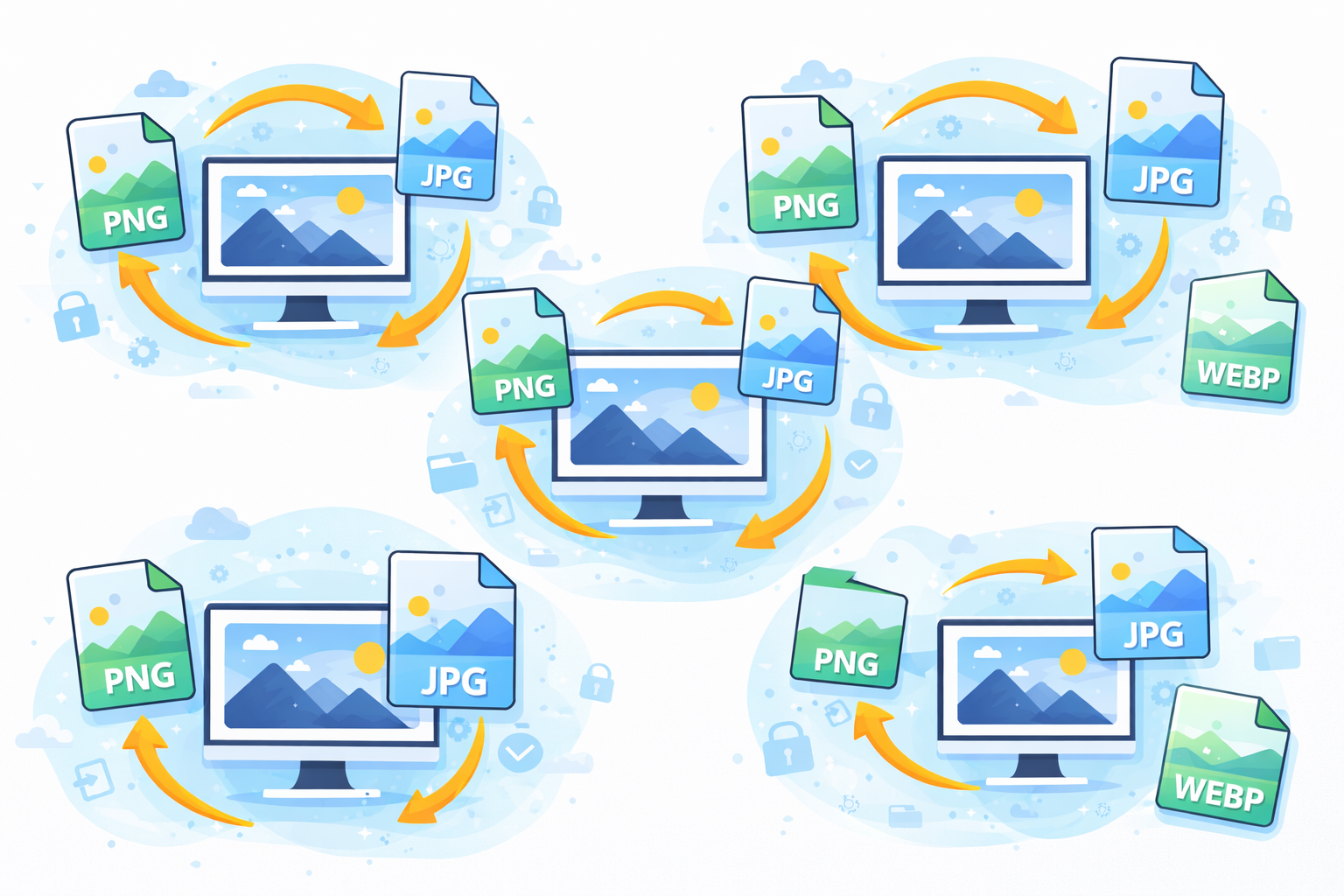
Introduction to Image File Conversion
If you’ve ever downloaded an image but it didn’t open or upload correctly there’s a good chance you’ve faced a format problem with your files. This is where the easy guide to converting Images Files for beginners is a great resource. Image conversion lets you convert a picture between formats, so that it can be used on websites, software or other devices.
For instance photographer may transform RAW photos to JPG to share online and a graphic designer may transform PNG photos to SVG to create graphic designs that can be scaled. Many everyday users require conversion of files while uploading photos for profile and sending out documents.
The good news is that changing images is a lot easier than many novices think. With the proper tools and an knowledge of the various formats for images you can convert any image in a matter of minutes.
In this Simple Guide to Converting Images Files for beginners we’ll cover all you need to know about knowing the various formats for files, and utilizing conversion tools to avoid pitfalls and improving the quality of your images.
When you’re done with this tutorial, you’ll be able to transform images for social media, websites printing, personal projects.
Understanding Image File Formats
Before you convert images, it is important to know the most popular formats for images and how they differ.
Different formats are created to meet different needs. Some are focused on high-quality and others are more focused on a smaller file sizes.
JPEG (JPG) Format
JPEG is among the most popular image formats.
Key Features:
- Small size file
- Perfect for photo shoots
- Compatible with almost every device and website
- Compression that reduces quality
JPEG is the best choice for social media, photography images, and web-based photos.
PNG Format
PNG files are used extensively as web images and graphics.
Benefits of PNG:
- Supports transparent backgrounds
- Maintains high image quality
- Perfect for icons and logos.
In reality, PNG files are usually larger than JPEG files.
GIF Format
GIF files are typically used to create simple animations.
Characteristics:
- Animation support
- Limited to 256 colors
- Small size file
They are used extensively for short animations, memes and basic graphic designs.
WebP Format
WebP is a new image format that was designed to optimize web traffic.
Advantages:
- File sizes smaller than JPG and PNG.
- High-quality compression
- Perfect for websites and speedier loading times.
Many websites of the present prefer WebP as it increases page speed.
Why You Might Need to Convert Image Files
Image conversion isn’t merely an engineering task, it solves daily issues.
and building healthy habits are some of the most common reasons for people to transform images:
1. Website Compatibility
Some websites will only accept certain formats, such as JPG and PNG. Converting your image will ensure it is uploaded successfully.
2. Reducing File Size
Large images can slow websites and cause emails to be difficult to send.
Making the conversion into a compression format such as JPG or WebP helps to reduce size.
3. Improving Image Quality
Sometimes you require high-quality images to print or do design work.
Converting images to lossless formats such as PNG helps preserve information.
4. Editing Compatibility
Some editing software supports only specific formats.
For instance design software could need TIFF or PNG images.
Popular Tools for Converting Image Files
There are numerous options for image conversion software. Some are available online, while others are downloaded software.
we’re here to help you grow stronger mentally and emotionally. are the best accessible options for beginners.
| Tool | Type | Best For |
|---|---|---|
| CloudConvert | Online | Rapid conversion of browsers |
| Convertio | Online | Support for multiple formats |
| GIMP | Software | Advanced editing and free. |
| Photoshop | Software | Professional conversion |
| IrfanView | Software | Lightweight image processing |
Online Image Converters
Online converters are great for novices since they need no installation.
Steps usually include:
- Upload the image
- Choose the format you want to use.
- Click to convert
- Download the file that has been converted
One example that is reliable is:
https://cloudconvert.com/
Desktop Software Converters
Desktop applications are more suitable to handle large amounts of images.
Benefits include:
- Batch conversions
- Quality control for higher quality
- Advanced editing tools
Applications such as GIMP or Photoshop offer powerful tools for professionals.
Step-by-Step Guide to Converting Image Files
Let’s look at a basic example with the online conversion.
Step 1: Choose Your Image
Choose the image file to your device or computer.
Common formats are:
- JPG
- PNG
- BMP
- TIFF
Step 2: Upload the Image
Visit an online converter, and then connect the files.
Most platforms permit drag-and drop uploads.
Step 3: Select the Output Format
Select the format you wish to transform your image into.
For instance:
- JPG for smaller size
- PNG to ensure transparency
- WebP is a web-optimization tool that uses WebP.
Step 4: Start the Conversion
Click the convert button, and take a few seconds to wait.
Most conversions last less than one minute.
Step 5: Download the Converted Image
After the conversion is completed Once the conversion is completed, download the updated file and save it on your device.
Best Practices for Image Conversion
Good practices will give you best results when you convert images.
Choose the Right Format
Different formats serve different purposes.
| Use Case | Recommended Format |
|---|---|
| Photography | JPG |
| Logos | PNG |
| Web optimization | WebP |
| Animation | GIF |
Keep Original Files
Always backup the original image prior to making any changes.
This lets you bring back the quality when needed.
Adjust Image Resolution
For websites that require the resolution in the range of 72 DPI is typically sufficient.
To print, you should make use of 300 DPI.
Use Batch Conversion for Multiple Files
If you have to convert a lot of pictures, batch processing will save time.
Many tools can convert hundreds of images at a time.
Common Mistakes Beginners Make
Even the most basic tasks can cause issues if they are not done correctly.
1. Converting Multiple Times
Each conversion could reduce quality, especially for JPG files.
Always convert your original image.
2. Choosing the Wrong Format
Utilizing PNG to create large images can result in unnecessary massive files.
Understanding the format’s purpose can avoid this error.
3. Ignoring Compression Settings
Compression levels affect image quality.
A lot of compression can result in blurred images.
4. Uploading Sensitive Images Online
Online tools save files for a short time.
Beware of uploading private photos to untrusted services.
How Image Conversion Affects Quality
Image quality is influenced by the type of compression.
Lossy Compression
Formats such as JPG make use of lossy compression.
This is done to remove some information in order in order to reduce the size of the file.
Pros:
- Smaller files
- Faster loading
Cons:
- Quality loss of a small amount
Lossless Compression
PNG employs lossless compression.
The data is not removed.
Pros:
- High-end
- No detail loss
Cons:
- Larger files
Advanced Tips for Better Image Conversion
Once you’re familiar in the fundamentals, these guidelines can help improve your results.
Optimize Images for SEO
Search engines favor fast-loading pages.
Optimizing the sizes and formats of images enhances the speed of websites.
Rename Files with Keywords
Example:
Instead of
image123.jpg
Use
mountain-sunset-photo.jpg
This makes it easier for search engines to understand the picture.
Use WebP for Websites
WebP images can decrease the size of pages dramatically.
A lot of modern browsers are compatible with WebP.
FAQs About Easy Guide to Converting Image Files for Beginners
1. What is the simplest method to convert images?
Utilizing one of the online photo converters is your most efficient method. Upload the image file then select the format you wish to convert to convert it, then download the image.
2. Does converting images reduce quality?
It’s dependent of the file format. Converting to JPG could reduce the quality of the image but PNG keeps the image’s features.
3. Can I convert multiple images at once?
Yes. A lot of tools support batch conversion that allows users to convert multiple files at once.
4. Which format is best for websites?
WebP as well as JPG are widely used due to the fact that they have smaller file sizes as well as faster loading speeds.
5. Are online converters safe to use?
Most reliable services are safe. However, be careful not to upload sensitive images or personal files.
6. What format should I use for logos?
PNG and SVG formats are great as they have sharp edges and can be used with transparent backgrounds.
Conclusion
Understanding how to convert images is an essential ability for anyone who works in the field of digital content. When uploading photos as well as designing graphics or optimizing your website, using the correct image format makes all the difference.
This Simple Guide to Converting Images Files for beginners provided the essentials, from understanding file formats and tools for conversion to avoid common errors and maintaining the quality of images.
Utilizing the tools and techniques that are provided in this article making the conversion of image files easy, quick and fast. Even novices can achieve professional results in just several clicks.
The more you work at it, the more comfortable it is to select the appropriate format for every scenario, saving time, improving quality and ensuring that your photos perfect wherever they are utilized.