
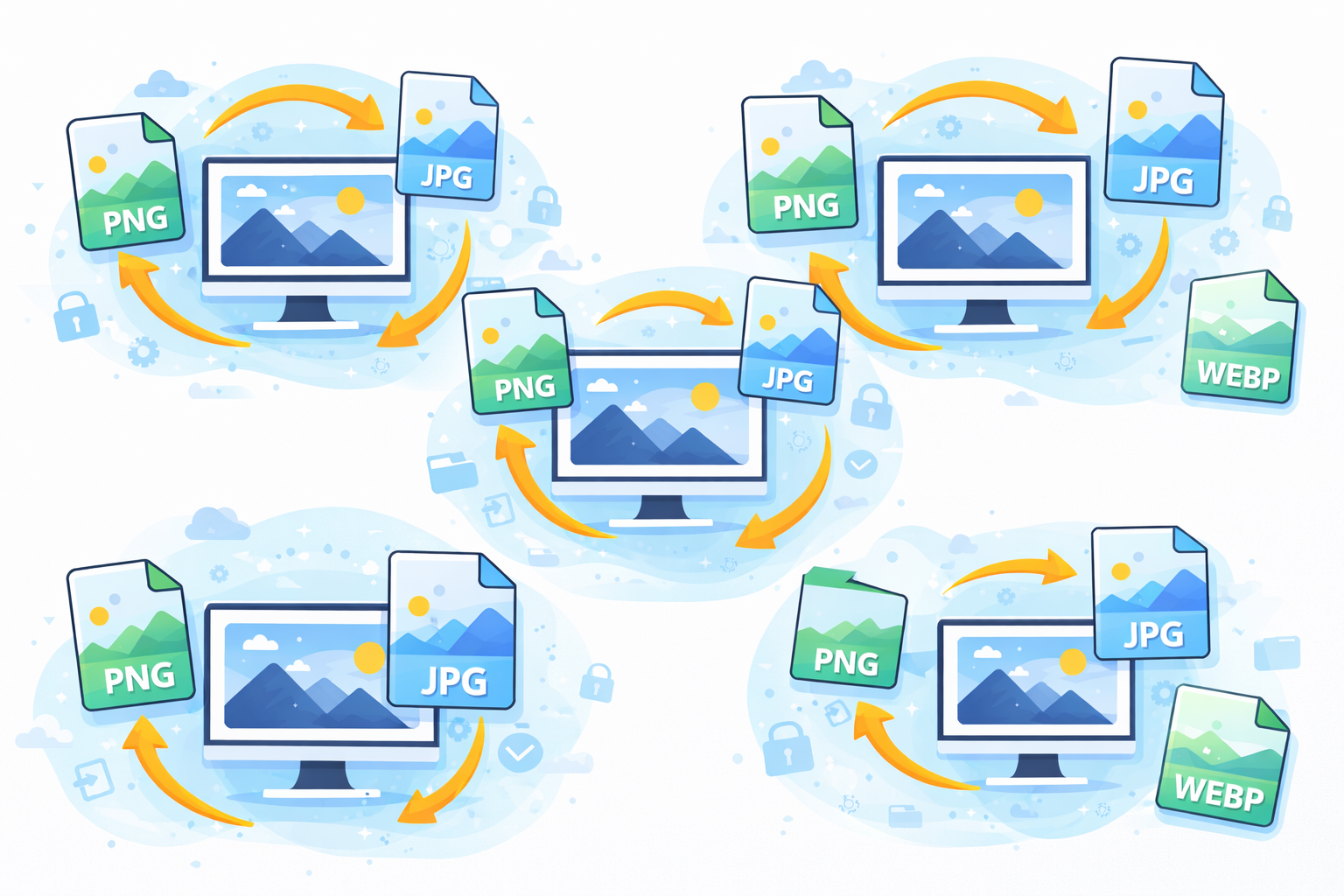
Introduction to Image Format Conversion
In the digital age images are everywhere – on social media, websites, presentations, emails as well as mobile apps. However, not all images are in the same format for files. Sometimes, an image that is saved as PNG requires conversion to JPG for use on websites or JPG image needs to be converted to WebP to make it easier to compress.
This is the place where knowing how to convert images to various formats Step by Step is extremely beneficial.
The conversion of an image’s format can be described as the procedure of changing an image from one format to another while making the image in use. Different formats provide different advantages like smaller file sizes and better quality, as well as transparency, or greater compatibility with programs.
For instance:
| Format | Best Use |
|---|---|
| JPG/JPEG | Web images and photographs |
| PNG | Graphics that have transparency |
| GIF | Simple animations |
| WebP | Optimized web images |
| TIFF | Printing of high-quality |
| BMP | Storage of images that are uncompressed |
A lot of people believe that image conversion is a complex process that requires expensive software however the reality is, anyone can accomplish it with a few tools, such as the built-in features of operating systems and free software or online converters.
Knowing how to convert images to different formats step by Step can help you:
- Reduce the file size for websites.
- Maintain image quality
- Improve the speed of your website
- Verify compatibility with software
- Make sure your images are optimized for use on social media
In this article you’ll discover a variety of methods tools, tricks, and the best ways to convert images with ease, even if you’ve no technical knowledge.
Understanding Common Image File Formats
Before you convert images, it is important to be aware of the most commonly used image formats and how they are appropriate to use.
JPEG / JPG Format
JPEG is among the most popular images formats available on the internet.
Key Features
- Small size file
- Excellent for photo shoots
- Lossy compression
- All supported
Best For
- Photography
- Social media pictures
- Images from the website
The problem is that JPEG doesn’t support transparency, and editing repeatedly could decrease the quality.
PNG Format
PNG is well-known for its high image quality.
Key Features
- Compression that is lossless
- Helps to promote Transparency
- A larger file size than JPG
Best For
- Logos
- Icons
- Backgrounds that are transparent
GIF Format
GIF is used primarily for animations that are simple.
Key Features
- Animation support
- Limited colors
- Small size file
Best For
- Animated memes
- Animations of short duration
- Reaction images
WebP Format
WebP is a contemporary format specifically designed for optimizing web traffic.
Key Features
- Smaller file sizes
- High-quality
- Helps to promote Transparency
Modern websites often convert images to WebP to speed up loading.
TIFF Format
TIFF is widely used for professional printing and photography.
Key Features
- Very high-quality
- Large file sizes
- No quality loss
Best For
- Professional printing
- Archiving images
Why You Might Need to Convert Image Formats
Many scenarios require conversion of images.
1. Website Optimization
Large images cause slowdowns on websites. Converting TIFF or PNG to JPG and WebP reduces file size significantly.
2. Software Compatibility
Certain applications can only work with certain formats. For instance the design tools might require PNG rather than JPG.
3. Email Attachments
Emails are often limited in size. Converting large images to compressed formats allows you to send them quickly.
4. Transparency Requirements
Designers frequently convert JPG images to PNG format so that they can use transparent backgrounds.
5. Printing Purposes
Formats that are high-quality such as TIFF as well as PNG are ideal for printing professional-grade.
How to Convert Images to Different Formats Step by Step Using Built-In Tools
Most people don’t know that the computer already has tools for image conversion.
Method 1: Using Windows Paint
Steps:
- Right-click on the image.
- Choose Open using Paint.
- Click File – Save As.
- Select the format you prefer (JPG, PNG, BMP, GIF).
- Save the file.
Advantages:
- Free
- Quick
- No installation required
Method 2: Using Mac Preview
Mac users can easily convert images with Preview.
Steps:
- Open the image within View.
- Click File – Export.
- Select a new format.
- Adjust the quality settings.
- The file can be downloaded and saved.
Using Online Tools to Convert Images
Online converters are very convenient since they don’t require installation.
Some of the most well-known tools include:
- CloudConvert
- Convertio
- ILoveIMG
- FreeConvert
Steps to follow:
- Visit an image conversion website.
- Upload your picture.
- Choose your output type.
- Click Convert.
- Download the image converted.
It is possible to explore an online example of a converter here:
https://cloudconvert.com/
Online tools support multiple formats like:
- PNG to JPG
- JPG to WebP
- PNG to GIF
- HEIC to JPG
Using Photo Editing Software for Image Conversion
Professional image editors give you greater control over image quality.
Adobe Photoshop
Steps:
- Click the image to open it.
- Click File – Save As.
- Choose a preferred format.
- Adjust the quality settings.
Photoshop permits conversion to a variety of formats like:
- JPG
- PNG
- TIFF
- PSD
- WebP
GIMP (Free Alternative)
GIMP is a robust free image editor.
Steps:
- The image can be opened.
- Click File – Export As.
- Select the format you prefer.
- Save the picture.
Batch Converting Multiple Images
Sometimes, you have the conversion of hundreds of photos in one go.
Batch conversion tools help save huge time.
Best Batch Conversion Tools
| Tool | Platform |
|---|---|
| XnConvert | Windows/Mac/Linux |
| IrfanView | Windows |
| ImageMagick | Advanced users |
| FastStone Photo Resizer | Windows |
The steps for batch conversion typically include:
- Upload multiple pictures.
- Choose the output format.
- Select the compression settings.
- Convert all images in one go.
Maintaining Image Quality During Conversion
The most common problem that people face when they learn how to convert images to different formats Step through Step is loss of quality.
to unlocking the secrets of human behavior are some tips to consider.
Avoid Repeated Compression
Repeatedly converting JPG images may degrade quality.
Use Lossless Formats
Utilize TIFF or PNG for quality when it is important.
Adjust Compression Settings
Many tools let you adjust the levels of compression to preserve the clarity.
Keep the Original File
Always save an original copy before converting.
Best Tools for Image Conversion
we’re here to help you grow stronger mentally and emotionally. are a few of the most trustworthy tools.
| Tool | Type | Best For |
|---|---|---|
| Photoshop | Paid | Professional editing |
| GIMP | Free | Advanced editing |
| CloudConvert | Online | Rapid conversions |
| XnConvert | Software | Processing of batches |
| Paint | Built-in | Basic conversion |
Each tool is a good fit based on the needs of your business.
Common Mistakes When Converting Images
Beginning users often make mistakes during the process of image conversion.
1. Choosing the Wrong Format
For instance:
- Using PNG for photos (large size)
- Making use of JPG to create transparent graphics
2. Ignoring Image Resolution
The format change could cause a reduction in resolution if it is not properly handled.
3. Over-Compression
The excessive compression of a limb can lead to:
- Pixelation
- Images that are blurry
- Artifacts
4. Not Keeping Backups
Keep an original copy of the file.
SEO Optimization for Images
Image format can also impact SEO performance.
Reduce Page Load Time
Images compressed for compression improve the speed of websites.
Use Web-Optimized Formats
Formats such as WebP are preferred by the latest browsers.
Add Alt Text
Alt text is a way for search engines to comprehend images.
Compress Images
Optimized images boost ratings and the experience of users.
Mobile Apps for Image Conversion
Smartphones are also able to convert images.
The most popular apps are:
Android
- Image Converter
- Photo & Picture Resizer
iPhone
- The Image Converter
- JPEG-PNG Image File Converter
These apps permit quick conversion directly from your phone’s gallery.
Frequently Asked Questions
1. What is the most effective design for images on websites?
WebP along with JPG are frequently used on websites due to their excellent balance between quality and size of files.
2. Does converting an image reduce quality?
It is dependent on the format. Formats that are lossy like JPG could lower quality, whereas lossless formats such as PNG maintain the quality.
3. Can I convert images without software?
Yes. Online converters let you convert images directly from your browser without the need to install software.
4. What is the difference between JPG and PNG?
JPG employs lossy compression, and smaller file sizes. PNG makes use of lossless compression, and also supports transparency.
5. Is WebP better than JPG?
WebP typically has smaller file sizes and is of similar quality, making it perfect for web pages.
6. How do I convert multiple images at once?
You can make use of batch conversion software like XnConvert and FastStone Photo Resizer in order to change multiple images at once.
Conclusion
The process of learning how to convert images to various formats step through Step is a vital digital ability. When you’re optimizing images for web sites or printing, or creating files to print or simply reducing storage space by converting images, it can make your job easier to complete and faster.
Converting images is now easy and doesn’t require any technical skills. Tools built-in to the software like Paint and Preview, online converters, and powerful programs like Photoshop and GIMP let anyone change the formats of images in just a few just a few seconds.
Be aware of these essential details:
- Choose the best format for your task
- Avoid compressions that aren’t necessary.
- Make sure you use reliable tools
- Save original files to backup
- Optimize images to improve performance
If you follow the correct method it is easy quick, speedy, and efficient. If you follow the techniques discussed in this article you will be able to confidently convert images to any project, platform, or business need.